Getting Started
This page installs runsheets, serves the bundled examples, and walks through one complete session so the pieces are familiar before you write a runbook of your own.
Requirements
- Ruby 3.4 or newer.
bashon thePATH.rubyis used for Ruby blocks, so it is already there.- A browser on the same machine. The server binds to loopback.
Install
Check it is on the path:
Run the examples
The gem ships with an examples directory. examples/directory_based_runbooks/hello is a runbook
that exercises every block kind without touching anything on your machine,
and examples/single_md_file_runbooks/disk-space-triage.md is a single-file runbook that only
reads. Change to the installed gem's directory:
Then serve the examples:
You will see:
runsheets 0.0.1
Library: 5 runbooks in 3 folders under /path/to/examples
Runs:    /Users/you/.local/share/runsheets/runs
Config:  none (defaults)
Session: starts in the browser (who and why)
Open http://127.0.0.1:4567/?token=3f9c0d6e8a1b4c2f9e7d5a3b1c0f8e6d in your browser
Press Ctrl-C to end the session and stop
--open launches your default browser. Without it, open the printed URL
yourself. The ?token= part is this start's key: the browser keeps it in
a cookie, so every later page needs nothing more. A browser that has not
opened the link sees "Open the link from the terminal" instead of the
runbooks.
The argument can also be one runbook, a directory or a single all-in-one markdown file:
runsheets --open directory_based_runbooks/hello                # one runbook directory
runsheets --open single_md_file_runbooks/db-maintenance.md     # one file, ## headings as steps
Walk through a session
1. Start the session
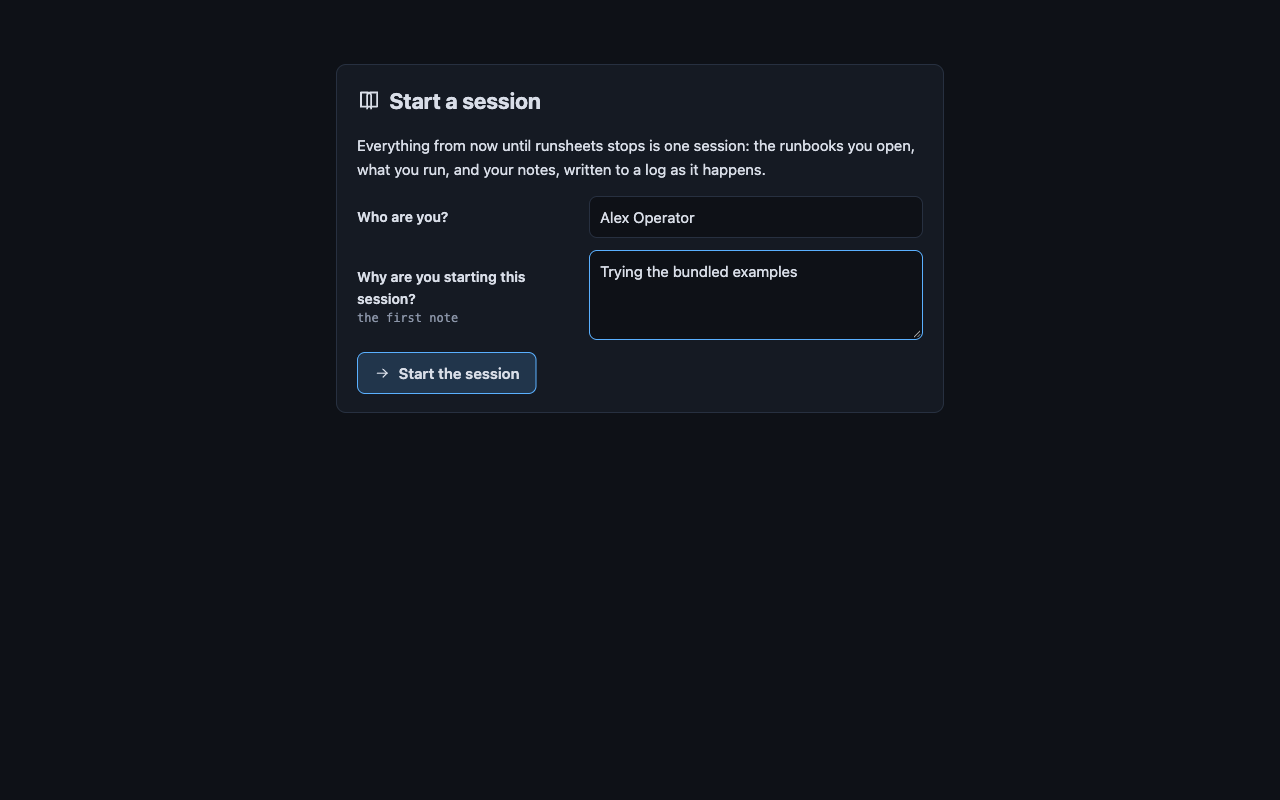
Everything from now until runsheets stops is one session. The browser opens on the Start a session page, which asks two things:
- Who are you? Pre-filled from
git config user.name, else$USER. - Why are you starting this session? Say what you are about to do ("trying out runsheets"). This becomes the session's first note.
Both are needed. Click Start the session. The terminal now echoes the session log as it is written, starting with a line saying who started the session and where the log is. The header carries a session pill with your name and how long the session has been open; it links to the session page.
To skip this page next time, give both on the command line:
runsheets --engineer "Pat" --why "monthly checks" ..
2. Choose a runbook
The library shows the examples as a tree on the left and a card for each
on the right. Click Hello, runsheets in the tree, under
directory_based_runbooks. Its pane shows when
to use it, its prerequisites and escalation, its steps, and a form with one
field per declared input, pre-filled from defaults and your environment.
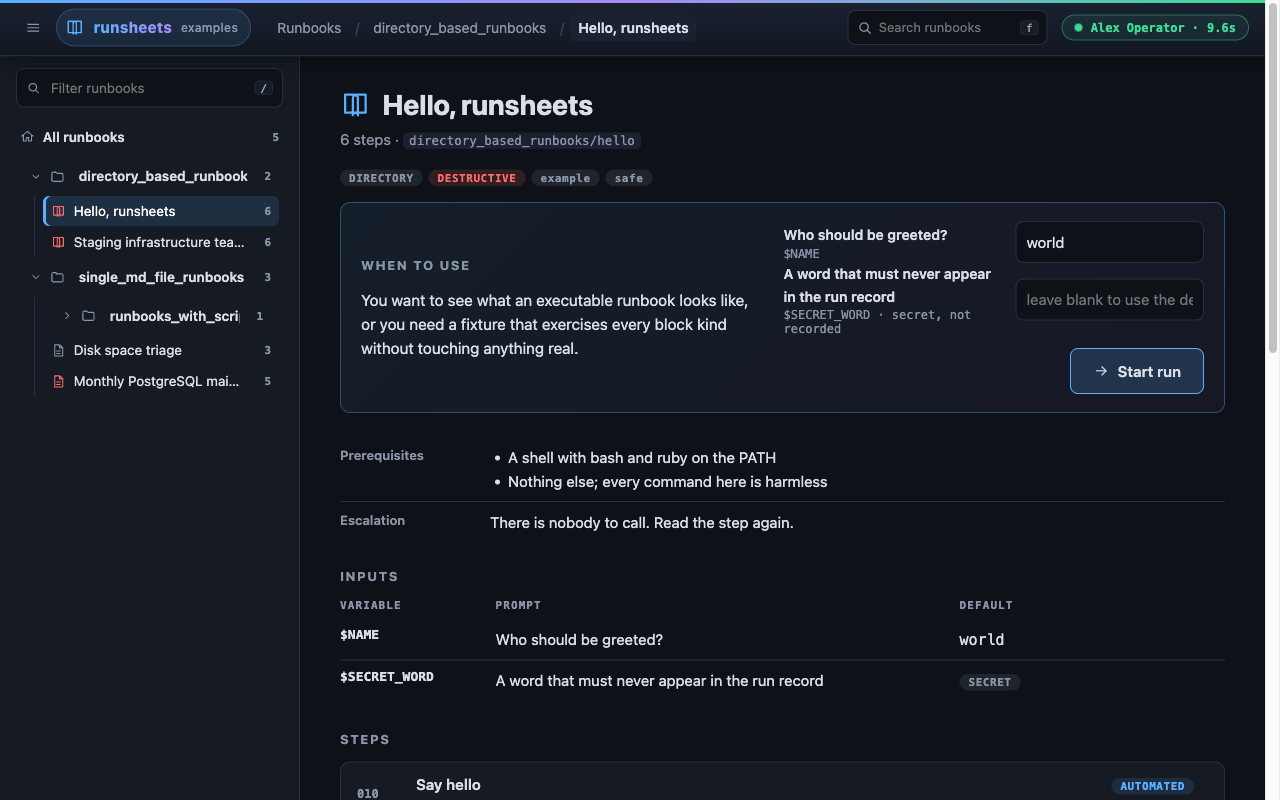
Nothing can be executed until the runbook has a run. Step pages are readable and blocks can be copied, but the Run buttons are greyed out; hovering one says "Start a run to execute blocks". That is deliberate: every execution belongs to a run.
3. Start the run
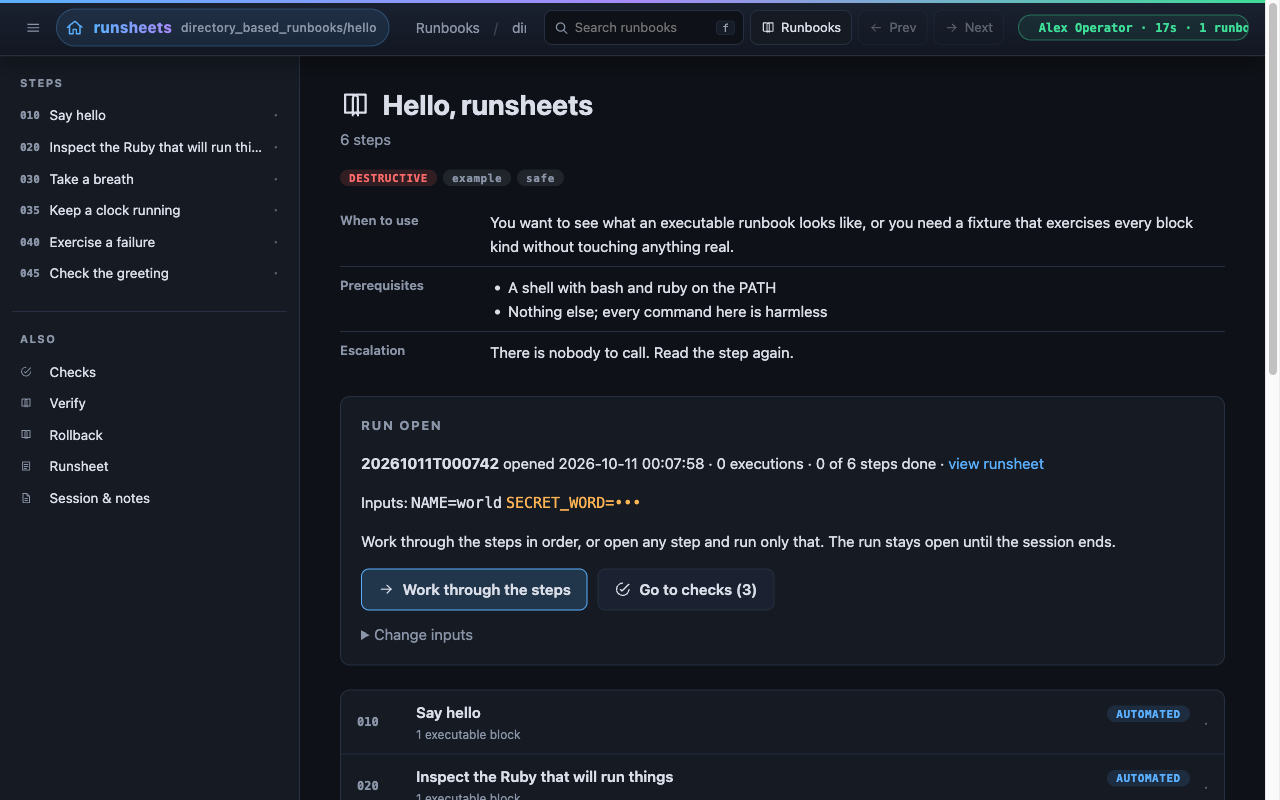
Leave NAME as world or type your own, then click Start run (or
press O). Two things happen:
- A run directory is created under the runs directory printed at startup,
in
directory_based_runbooks/hello/, named by the session id. - You land on the runbook's landing page, which now shows a Run open panel: the run id, its progress, its inputs, and Work through the steps.
Starting a run does not commit you to the whole runbook. You can open any step, in any order, and run only that step's blocks. See A run is a record, not a sequence.
4. Run a block
Click Work through the steps. Step 1, Say hello, has one executable
block. Click Run. The button disables, the status shows running, and
output appears below the code as the process writes it. When it exits, the
border turns green for exit status 0 or red for anything else, and the
footer line shows the exit status, duration, finish time, and the name of
the log file in the run directory. The terminal shows the same execution
in the session log: the code that ran after $, the output after >.
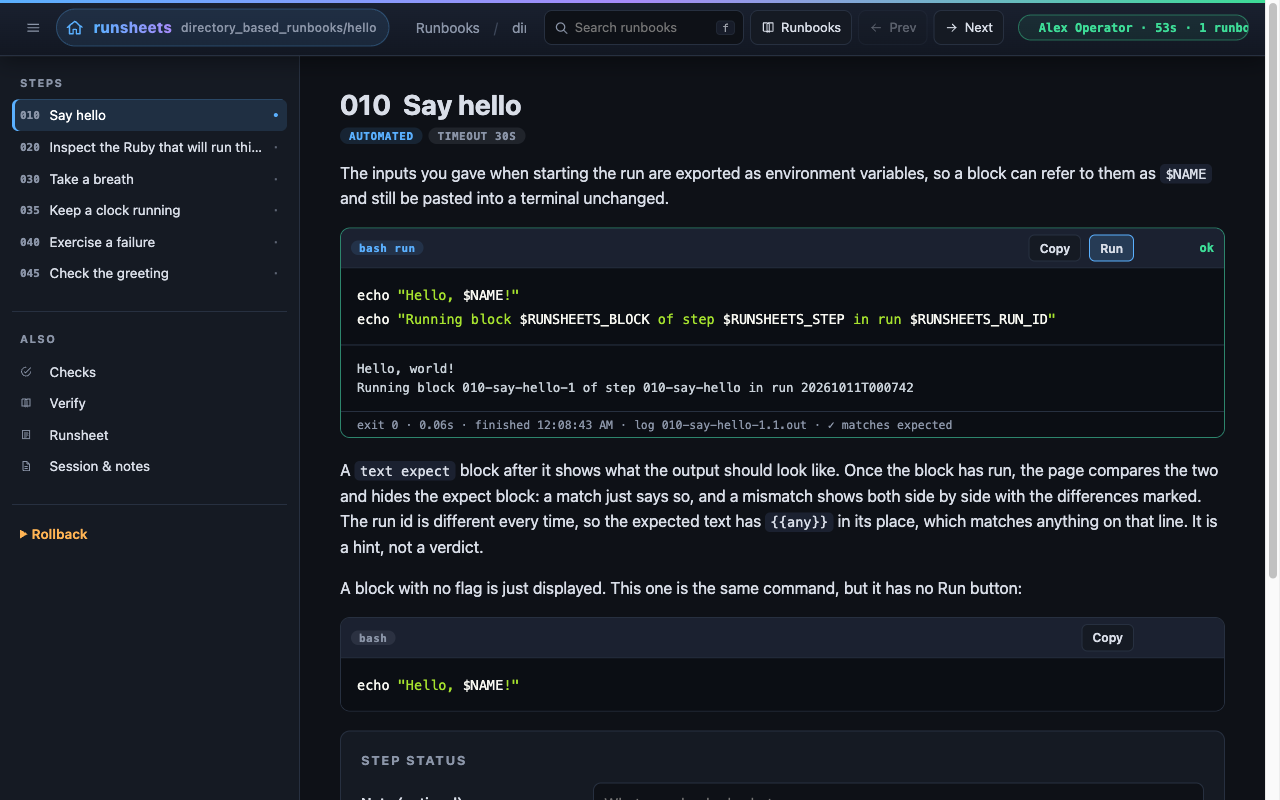
Click Run again if you like. Both executions are recorded, with separate
.cmd and .out files.
The second block on that page is marked expect. It shows what the output
should look like and is never executed. Once the first block has run, the
page compares the two and the footer says ✓ matches expected. The run id
changes on every run, so the expected text has {{any}} in its place, which
matches anything on that line. When output does differ, the page shows it
beside the expected text with the differences marked. The third block has
no flag at all: it is the same command, display only.
Step 2, Inspect the Ruby that will run things, ends with a terminal
block, for things that need a real terminal. Run it in your own shell, then
click I ran this. The confirmation, with a note if you add one, goes
into the record the same way a step mark does.
5. Mark the step done
At the bottom of every numbered step is a Step status panel. Type a note if there is something worth recording ("saw the greeting, moved on"), then click Mark done and continue. The acknowledgement goes into the record with a timestamp and you land on the next step. Skip records a skip instead.
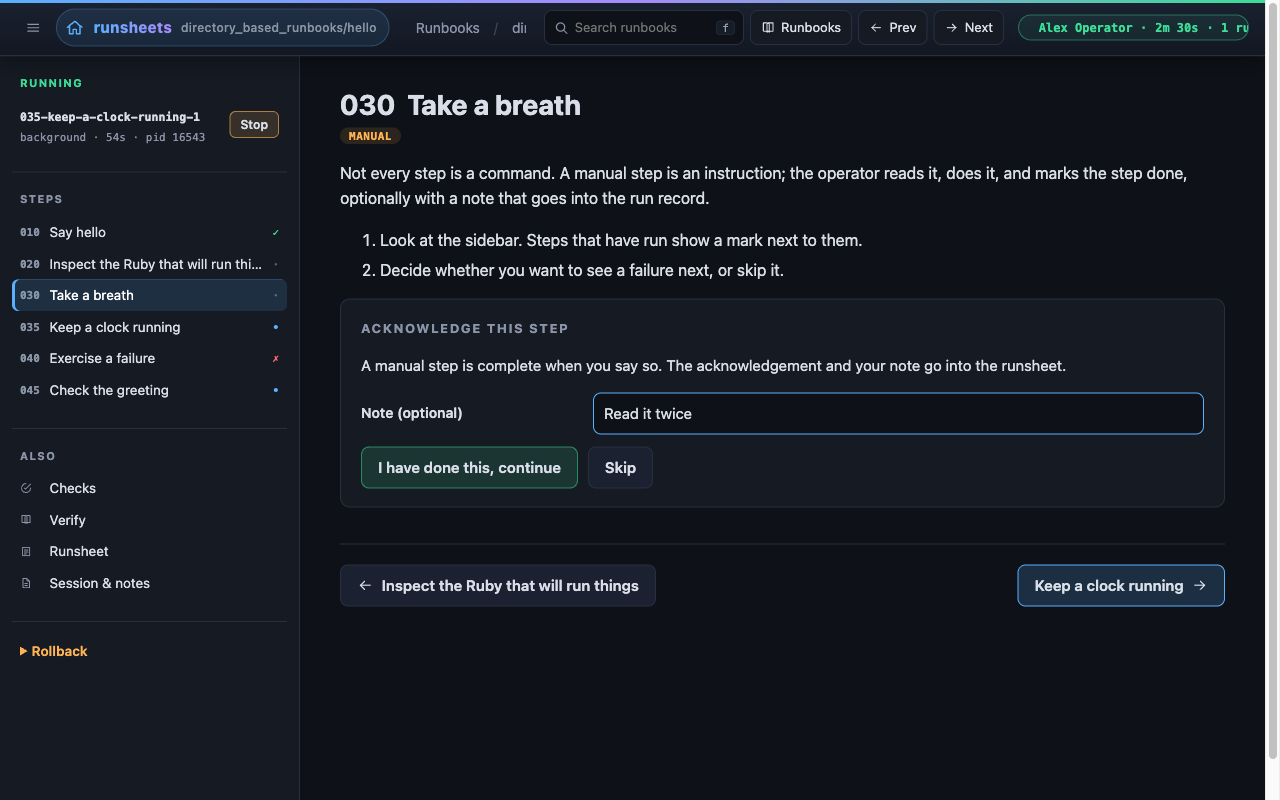
The sidebar marks each step: ✓ done, ↷ skipped, • ran with no
failures, ✗ a block failed, · untouched.
6. Keep something running
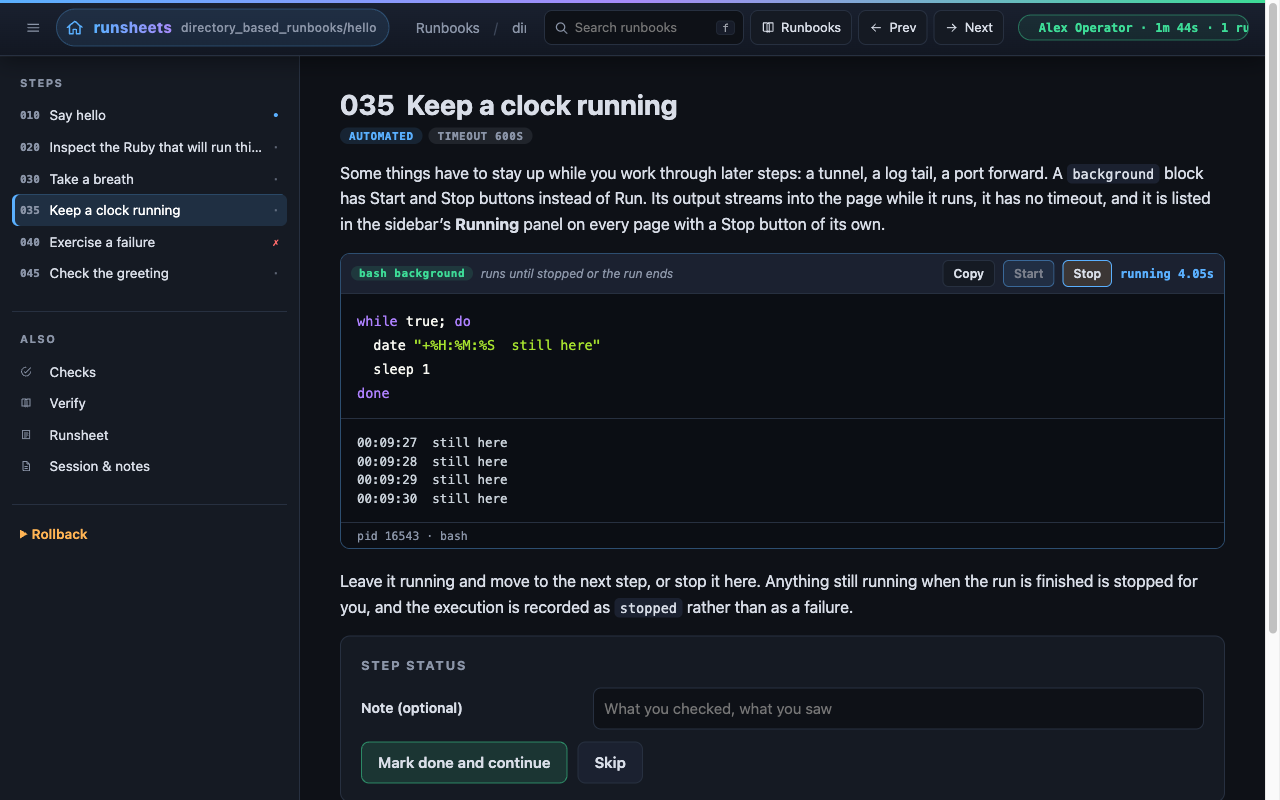
Step 4, Keep a clock running, has a background block with Start and
Stop buttons instead of Run. Start it: a timestamp appears every second,
the block has no timeout, and the sidebar grows a Running panel that
follows you to every page, and to every runbook, with its own Stop button.
Leave it running for now.
7. See a failure and a timeout
Step 5, Exercise a failure, is marked destructive in its front matter even though it is harmless, so you can see the confirmation flow. Clicking Run (destructive) asks the server to run the block; the server answers with a four-character code instead, and the block runs only once you type it back.
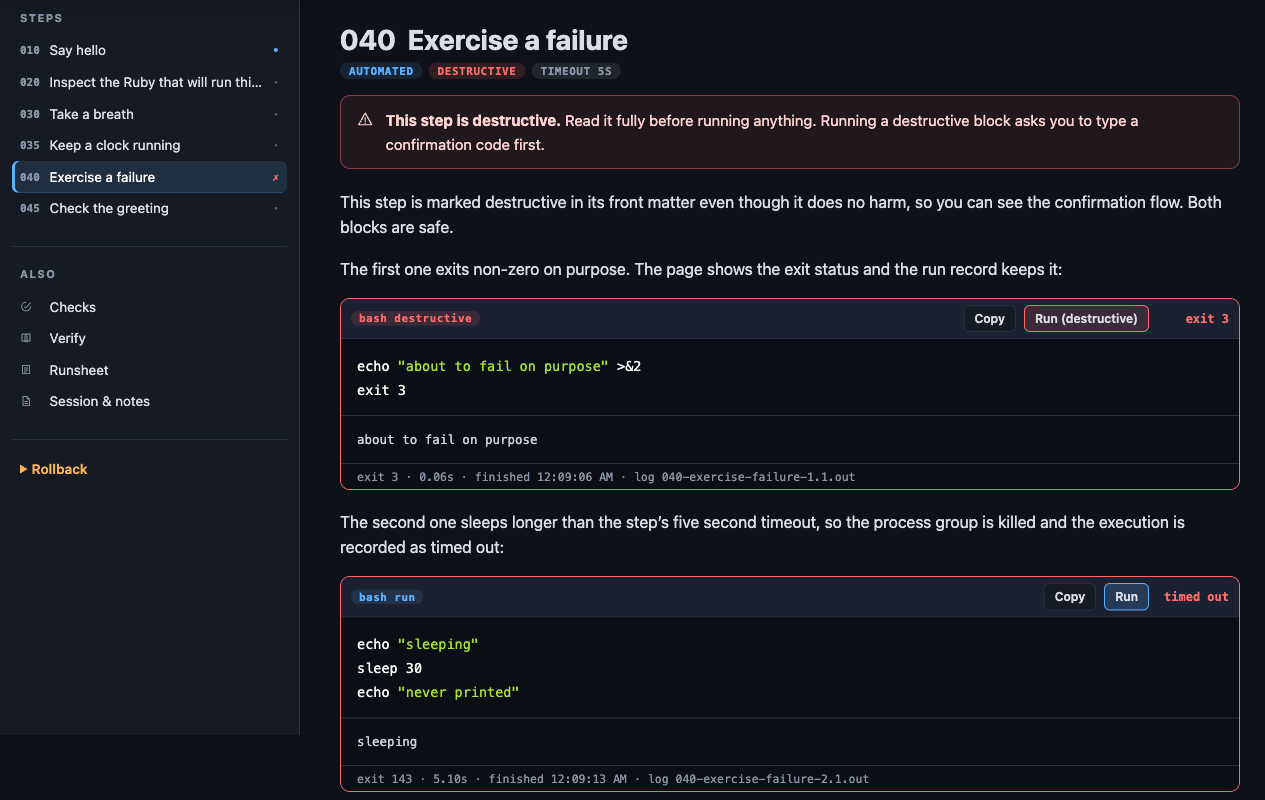
The first block exits 3 on purpose. The second sleeps longer than the step's
five second timeout; runsheets sends TERM to the whole process group,
waits two seconds, sends KILL, and records the execution as timed_out.
Nothing is left running.
8. Run the checks
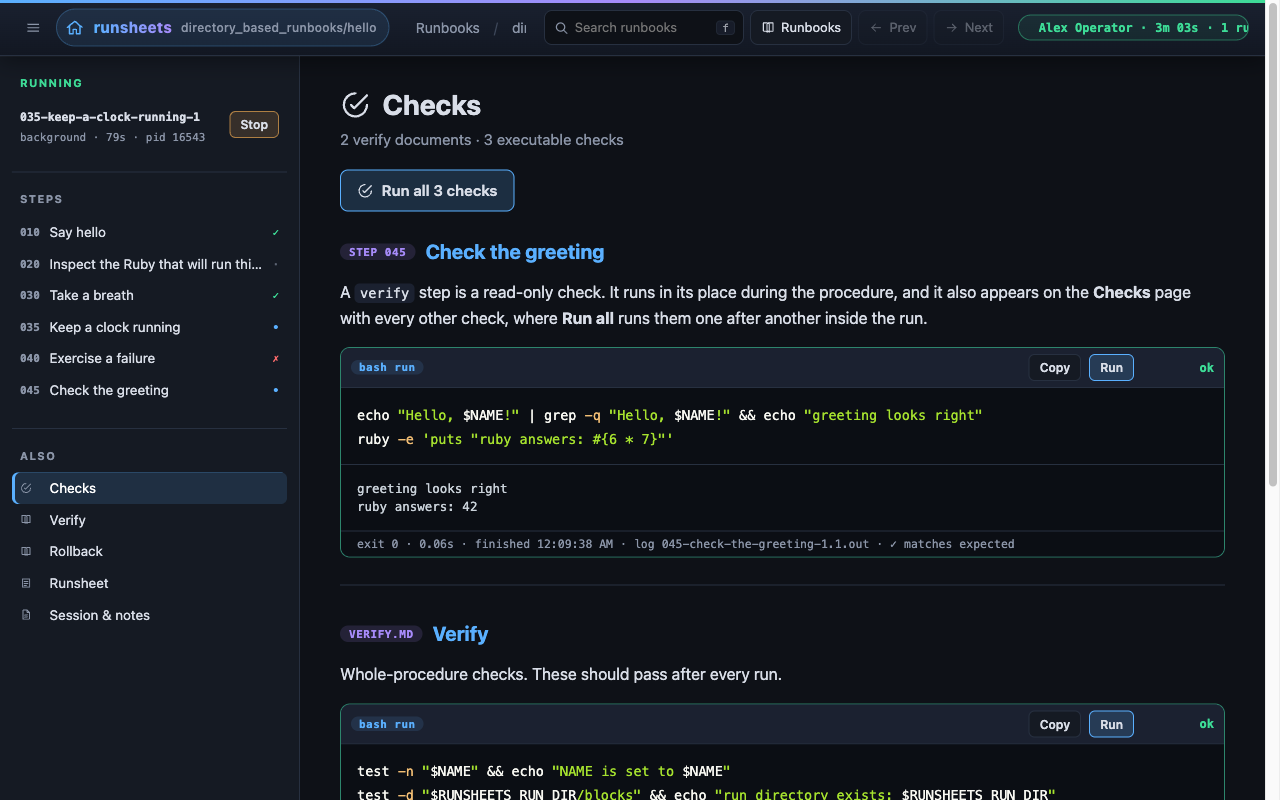
Step 6, Check the greeting, is a verify step, and verify.md holds
whole-procedure checks. Open Checks from the sidebar, or Go to
checks on the landing page: both documents are on one page. Click Run
all; the checks run in order, inside the same run, and the status line
reports the tally.
9. Switch to another runbook
Press R (or click Runbooks) to go back to the library. Hello now carries a run open badge and a Return to its run button. Select Disk space triage, keep the defaults, and click Start run. Run its first step.
Switching finished nothing. The clock from Hello is still running: the
Running panel lists it with the directory_based_runbooks/hello slug
beside it, and its Stop button
works from here. Go back to the library and click Return to its run on
Hello: you are back in the same run, with everything you did still marked.
Inputs given when returning to a run are ignored; change them with the
Change inputs form in the Run open panel.
10. Add a note
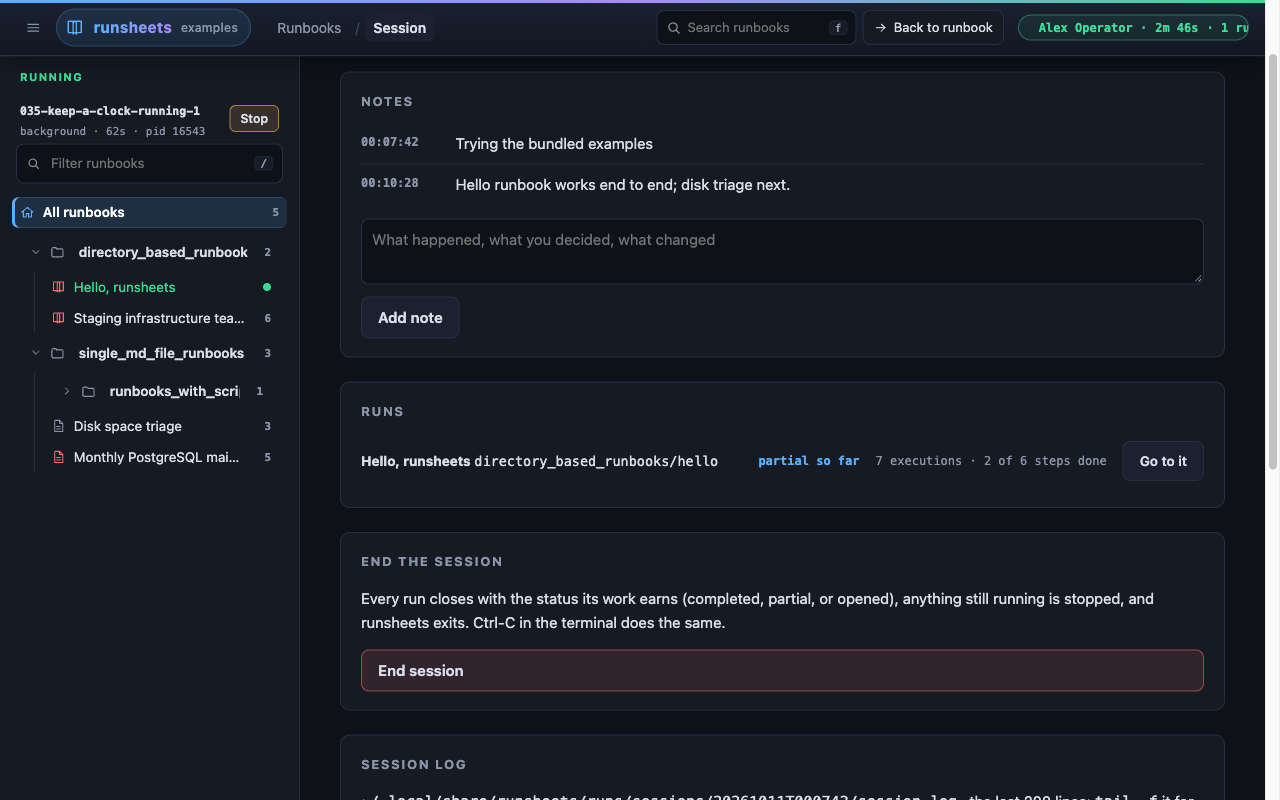
Click the session pill in the header. The Session page shows who started it, on which host and when; the notes, with your reason first; each runbook's run with its status so far ("partial so far"); and the last 200 lines of the session log. Type something under Notes ("clock left running on purpose") and click Add note. It is timestamped and written to the log.
11. End the session
On the same page, click End session. Every run is closed with a status
worked out from what was done: completed when every numbered step was
marked done or skipped, partial when anything was done but not all of
it, opened when the runbook was selected and nothing was done. The clock
is stopped and recorded as stopped, which is not a failure. The browser
shows Session ended, and runsheets exits. Ctrl-C in the terminal does
the same.
12. Read the record
~/.local/share/runsheets/runs/
  sessions/20261010T141502/
    session.json
    session.log
  directory_based_runbooks/hello/20261010T141502/
    run.json
    run.md
    blocks/
      010-say-hello-1.1.cmd
      010-say-hello-1.1.out
      040-exercise-failure-2.1.cmd
      040-exercise-failure-2.1.out
  single_md_file_runbooks/disk-space-triage/20261010T141502/
    run.json
    run.md
    blocks/
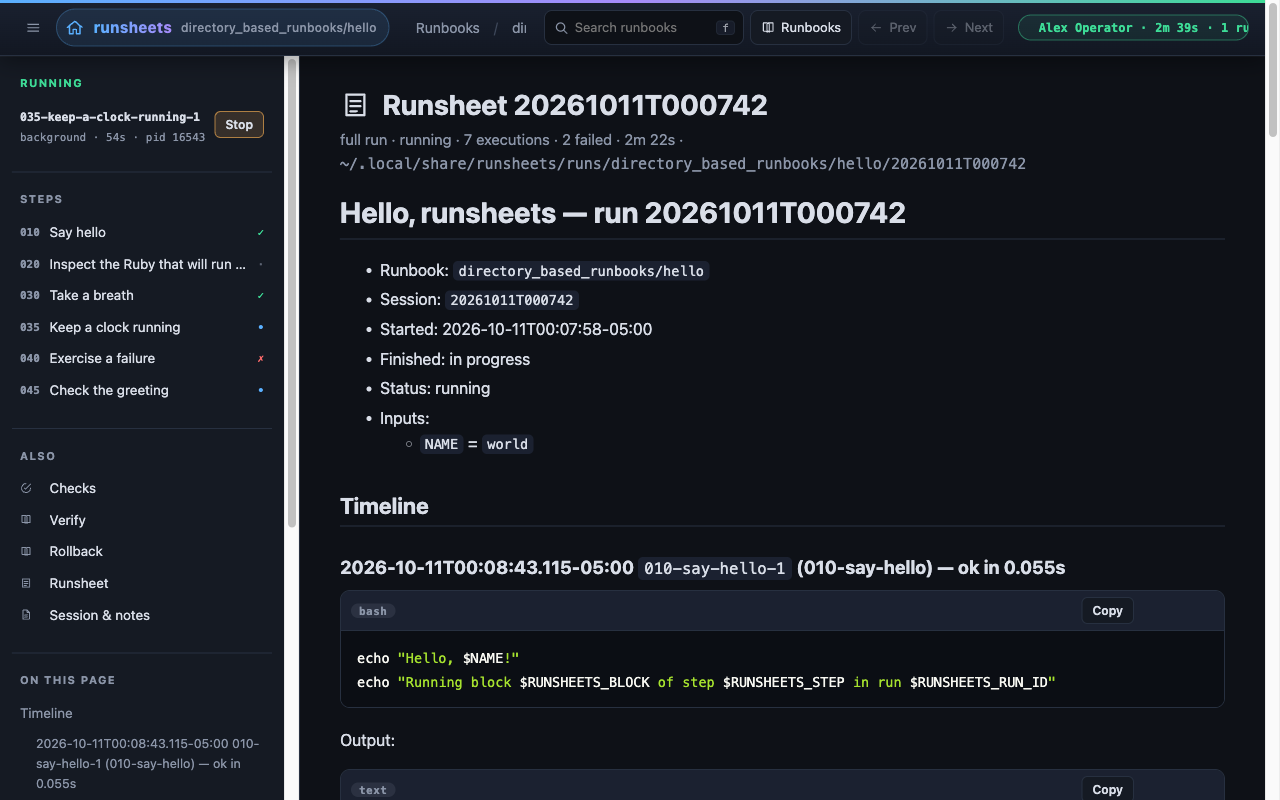
run.md is a runbook's transcript: every execution in order with the
exact code that ran, its output and its verdict, interleaved with the step
acknowledgements. run.json is the same as data. session.log is the
whole session, every runbook, line by line. See
The Run Record for the layout.
Serve the examples again, select Hello, and its landing page lists the run
under Previous runs. Edit
directory_based_runbooks/hello/steps/010-say-hello.md, change the
greeting, and open that run: a Runbook changed since this run panel
shows the diff between what ran and what the runbook says now.
13. Start your own
runsheets --new ops/runbooks                  # asks: shape, template, name, title, ...
runsheets --check ops/runbooks/my-procedure
Leave the directory off and --new asks for it, offering the dir: in
your config file or RUNSHEETS_DIR. It then asks whether you want a
directory runbook or a single file, which template to start from, and the
name and title. Enter accepts each default.
For the shape of a real one, read examples/directory_based_runbooks/staging-teardown (a
directory, every block kind, a blast radius and a rollback) and
examples/single_md_file_runbooks/db-maintenance.md (a single file whose sql run blocks go
through psql). Neither runs against your machine as written; they are
there to copy from. examples/single_md_file_runbooks/disk-space-triage.md is safe to run, and
shows a runbook linking to plain markdown documents, which the library
leaves out of its tree.
Check a runbook without serving it
Loads the runbook, prints every authoring warning (unknown block flags, automated steps with nothing to run, bad input names), and exits 1 if there were any. Useful in CI for a repository of runbooks.
Next
- Example Runbooks for a tour of the other bundled runbooks.
- Writing Runbooks to build your own.
- Scripts with asgard to keep long or reusable scripts out of your blocks.
- The Web Page for everything the page can do.
- Troubleshooting and FAQ if something did not go as described.